


Video Background Changer
3.4923.00 Reviews
App Specs
- Version
- 5.2.1
- Updated On
- License
- Free
- Downloads
- 1,000,000+
- Developer
- MAA FOR APPS
- Categories
- Beauty
- Platform
- Android, iOS
Screenshots


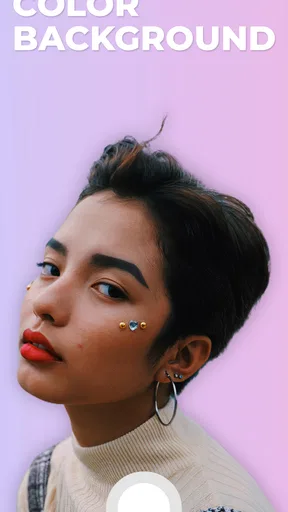




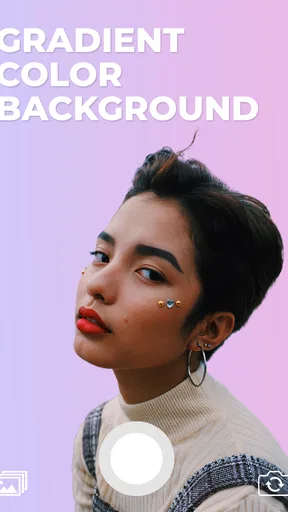
 Analysis by AppCompare
I’d treat Video Background Changer as a quick way to rethink the setting of a short clip, rather than a full video-editing studio. Its main appeal is clear: it can separate a subject from the scene behind them and let you try another background. That makes it useful for playful posts, simple talking-head videos, and small creative experiments when I don’t want to learn a complicated desktop editor.
What a quick edit can—and cannot—do
The promise of a fast background swap is appealing, but the result still depends on the footage. A person standing clearly apart from a plain wall is an easier subject for automatic separation than someone moving past clutter, with loose hair blending into the room or hands crossing in front of patterned clothing. I’d record with the subject well lit and leave some space around them; that small bit of planning can matter more than trying several replacement scenes afterward.
It also helps to think of the replacement as part of the shot, not a decoration added at the end. A bright outdoor image behind a dim indoor subject can look pasted on, even when the cutout is acceptable. I’d choose a background with a similar general light level and keep the subject’s position in mind before filming. These choices make a quick edit feel more coherent without asking the app to solve every visual mismatch.
When I’d reach for it
For a casual video message, a short introduction, or a lighthearted clip, changing the setting can make an ordinary recording feel fresh. A small creator could use it to keep a consistent visual backdrop for brief updates, while someone making a joke video could put a pet or a friend in an obviously impossible scene. The strongest fit is a short clip where the subject remains easy to identify and the background is meant to support the moment, not carry a detailed story of its own.
For example, if I wanted to send friends a quick birthday greeting from a busy home, I could record a clear, steady shot and try a quieter background before sharing it. I’d watch the preview around the edges of the person and during hand movements, then decide whether the effect looks convincing enough for the purpose. That is a more realistic use than expecting a single tap to turn an awkwardly lit recording into polished production.
Choosing a workflow
Changing a background in a dedicated editor usually gives more room to adjust a finished composition, but that extra control can mean more steps and a steeper learning curve. A physical green screen can provide a cleaner starting point when it is lit evenly, although it takes space and setup. This app’s automatic approach is appealing when convenience matters more than fine-grained control: I can explore a different look without preparing a screen or building a complex edit.
There is a practical trade-off. If the edge around a moving subject looks rough, or if the original recording has several people crossing one another, I’d rather simplify the shot or use an editor that gives me more detailed control. A replacement background also won’t fix poor framing, distracting motion, or weak lighting. I see the app as a useful shortcut for suitable footage, not a substitute for planning or for every editing job.
Worth Reading Before You Choose

EA SPORTS FC Mobile 26 Is a Bigger Football Game, but It Takes Time

Flipboard Shows What News Apps Must Do Beyond the Feed

Switching to Android Auto Means Rethinking Your Driving Routine

Google Calendar Makes a Crowded Week Easier to Manage

Ludo King Makes the Most of the Minutes Between Plans

Baby Panda World Brings Quick Play to Modern Phones, but Its Game Library Feels Busy
Who may want another option
I’d recommend trying it if you mostly make brief personal clips and enjoy experimenting with the setting. I’d be more cautious if you need precise masking, a layered timeline, or a consistent professional finish across complicated scenes. People who are uncomfortable checking an edited clip before sharing it may also prefer a simpler recording workflow, since automatic effects can look less natural when the subject and background are difficult to separate.
Before settling on a final version, I’d compare a few moments from the beginning, middle, and end rather than judging only the opening frame. Hair, sleeves, quick turns, and objects held close to the body are useful places to inspect. If one background makes the subject hard to read, a plainer choice can work better than a dramatic one. This quick review catches common visual distractions without turning a casual project into a lengthy editing session.
Getting Started with Video Background Changer
The first thing I noticed when I fired up the Video Background Changer was its intuitive interface. You know how some apps have you feeling like you need a degree in rocket science just to navigate? Not this one. Everything is laid out clearly, making it super user-friendly even for newbies like myself.
Once you open the app, you’re greeted with a simple option to upload a video. You can either shoot a fresh one or choose from your gallery. I decided to pick a quick clip of my dog doing his usual shenanigans in the living room. With just a few taps, I was ready to start editing.
Features that Stand Out
Okay, so let’s dive into the fun part – the features. The app offers a variety of backgrounds to choose from. Whether you want to make it look like you’re chilling on a beach or standing in the middle of a bustling city, the choices are quite impressive.
- Background Removal: The app uses AI to detect and remove the background from your video. It’s like having a green screen without actually having one.
- Custom Backgrounds: Not vibing with the pre-set options? No worries! You can upload your own background image or video to add that personal touch.
- Real-time Preview: This feature lets you see the changes as you make them, which is a huge time-saver. No more guessing games!
Performance and Usability
As someone who’s tried a fair share of editing apps, I was pleasantly surprised by how smoothly Video Background Changer runs. The AI processing is pretty quick, and the app didn’t crash on me once – a big win in my book.
For speed, I’d set expectations around a focused, single-purpose edit: selecting a clip, trying a backdrop, and checking the result. Real-time preview makes experimentation feel immediate, but previewing an effect is not the same as knowing how quickly every final export will complete. Clip length, image detail, and the phone handling the work can all affect how responsive an edit feels, so I’d start with a short sample before committing to a longer video.
That test clip is also a useful way to decide whether the app suits a particular project. I’d try a few seconds with the same movement and lighting as the intended recording, then inspect the edges and overall composition. If the preview already struggles to separate the subject cleanly, spending time on a long take is unlikely to be worthwhile. A small trial keeps the workflow low-risk and helps me choose a simpler background or a different editing method early.
Switching backgrounds is straightforward, and the app does a solid job maintaining the quality of the original video. My dog looked just as adorable against a backdrop of snow-capped mountains as he does on our living room carpet.
Handling demanding clips and avoiding rework
The most demanding moments are not necessarily the longest ones. Fast movement, a subject turning sideways, a hand waving near the face, or a pet darting across the frame can make automatic separation less dependable than a calm pose. I’d capture a couple of shorter takes rather than one long performance when I know there will be lots of motion. That gives me options to keep the cleanest section and avoids building the whole edit around a moment where the outline becomes distracting.
For a pet clip like mine, I’d also keep toys, furniture, and other objects from crowding the subject’s outline. Fur and quick changes of direction are inherently tricky for a cutout effect, so a plain, contrasting room can give the app a better chance. If the subject is holding something important, I’d make sure it stays visible against both the original scene and the replacement. It is a simple filming trade-off: a little less visual clutter can make the final composite feel much more intentional.
Background choice can affect perceived quality as much as the removal itself. A busy city scene may look fun, but its detail can compete with a person who is already moving. A quiet wall, soft landscape, or restrained image often keeps attention where I want it. I’d also avoid a background with a strong horizon crossing the subject’s head or shoulders; even a technically clean cutout can look oddly placed if the visual lines do not make sense.
Stability, recovery, and device expectations
In my use, the app stayed stable through the straightforward edits I tried, which is reassuring for a tool meant to make quick changes. Still, I wouldn’t treat one smooth session as a promise that every phone or every demanding clip will behave identically. Video effects can ask more of a device than browsing a static image, so I’d close other demanding tasks and keep the first project modest if the phone feels warm or sluggish. That is sensible preparation, not a claim that the app has a particular hardware requirement.
If an edit takes an unexpected turn, my first move would be to return to the original clip and try a shorter section or a less complicated background, rather than repeatedly changing several things at once. Keeping the untouched source available is a useful habit with any video editor: it lets me recover the best take and compare the effect without losing sight of what the recording looked like. I’d also preview the full result before sharing, since a clean opening frame cannot guarantee equally clean edges throughout.
The app is free and is made by MAA FOR APPS. It sits in the beauty category, though its practical appeal is broader for people who want a quick visual change in a video. Its average is 3.3 from around 19 thousand ratings, and it has passed 1 million installs. Those figures suggest it has found an audience, but I’d still judge it by the kind of footage I actually plan to edit rather than expecting it to suit every creator.
It is rated for Everyone, and the current version is 5.1.7; it runs on Android 6.0 and newer. That gives many Android users a way to try the core idea without paying first, but an older operating system alone does not tell me how comfortably a particular phone will process video. For someone deciding whether to use it regularly, the most useful test is still a short clip on their own device, with the same lighting and movement they expect in real projects.
Is It Worth It?
I mean, who doesn’t love a bit of creative flair in their videos? Whether you’re a budding content creator or just someone who wants to have a bit of fun with your clips, this app is a fantastic tool.
The Video Background Changer isn’t just about slapping on a new background. It’s about enhancing your storytelling and creating a different atmosphere with just a few taps. Plus, it’s a great way to impress your friends or followers with minimal effort.
For a more polished result, I’d plan the shot and the setting together: choose the replacement first, then record a subject whose lighting and position will sit naturally in it. That small workflow change can prevent the common mismatch of a person who looks indoors pasted over a sunny outdoor scene. If the video is meant for a casual post, a little visual oddness may even be part of the joke; if it is meant to look credible, restraint usually serves it better.
One question I’d ask before making it part of a regular routine is whether I want quick experimentation or dependable control over every edge. This app is the more appealing choice when speed and accessibility matter, while a more involved editor is a better fit when a client, presentation, or carefully staged scene leaves little room for artifacts. For an occasional clip, its focused approach is a benefit. For detailed compositing, it is a reason to look elsewhere.
The Final Verdict
All in all, if you’re looking to add some pizzazz to your videos without diving into complex editing software, give the Video Background Changer a try. It’s easy to use, performs well, and delivers on its promise to make your videos pop.
So, go ahead and unleash your creativity. Whether you’re dreaming of alien landscapes or serene beaches, this app is your ticket to video editing magic. Happy editing!
My performance verdict is positive for short, uncomplicated footage: the clear workflow and live preview make it easy to test an idea, and my own session stayed stable. I’d be less confident using it as the only tool for rapid action, intricate edges, or lengthy edits on a phone that is already struggling. Start small, check the entire clip, and keep the original; if the cutout fits the shot, this is an enjoyable shortcut, while a precision-heavy project deserves a more controllable editor.
Pros
- Easy-to-use interface for beginners.
- Wide variety of video backgrounds available.
- Supports high-resolution video exports.
- Quick processing with minimal lag.
- Regular updates with new features.
Cons
- Limited free features; in-app purchases needed.
- Occasional ads can be intrusive.
- Requires a stable internet connection.
- Some backgrounds need additional downloads.
- Editing tools are somewhat basic.
FAQs for Video Background Changer
What features does the Video Background Changer app offer?
The Video Background Changer app allows users to seamlessly replace the background of their videos with various options, including images, colors, or other video clips. It includes an intuitive interface, real-time preview, and a library of pre-installed backgrounds. Users can also import custom backgrounds for more personalized results.
Is the Video Background Changer app suitable for beginners?
Yes, the Video Background Changer app is designed with user-friendliness in mind. It offers a simple drag-and-drop feature and step-by-step tutorials to guide beginners through the process of changing video backgrounds. The app’s intuitive layout makes it accessible for users with no prior editing experience.
Are there any limitations on video formats supported by the app?
The Video Background Changer app supports a wide range of video formats, including MP4, AVI, MOV, and more. However, it's essential to check the specific format compatibility on the app's download page to ensure your video files are supported, as some less common formats may require conversion.
Does the app offer any in-app purchases or subscriptions?
While the Video Background Changer app is free to download, it offers additional features through in-app purchases. These may include access to premium backgrounds, advanced editing tools, and removal of watermarks. Users can also opt for a subscription to unlock all premium content and receive updates.
Can I use the Video Background Changer app offline?
The app requires an internet connection for downloading new backgrounds and receiving updates. However, once the necessary assets are downloaded, users can perform basic editing functions offline. For the best experience and access to all features, it is recommended to use the app with an active internet connection.


